
If you want to stream on Twitch, you need a very specific code: the Twitch Stream Key. It is the digital key to your channel, so to speak - without it, your streaming software such as OBS, Streamlabs or Elgato cannot send a live image to Twitch.
In this guide you will learn step by step, how to find, use and protect your Twitch stream key, so that your livestream starts smoothly.
What is the Twitch Stream Key?
The Twitch Stream Key is your personal access code with which you can access Twitch and your streaming software such as OBS or Streamlabs connect. It acts as an access key with which Twitch recognizes: „The signal really comes from this channel - it can be broadcast live.“
But how exactly does this key work?
Technically speaking, the stream key is part of the so-called RTMP protocol. RTMP stands for Real Time Messaging Protocol - It is the standard procedure used by streaming programs such as OBS or Streamlabs to send your video and audio data to Twitch. The stream key is your personal authentication code.
Without this key, OBS or Streamlabs would be able to record your video, but Twitch would not accept the signal.
Twitch automatically creates a separate stream key for each channel. You don't have to generate it yourself - but you can view or reset it at any time.
Where can I find my Twitch stream key?
Twitch makes it quite easy for you to find your stream key. Here is one Step-by-step instructions:
- Register on twitch.tv to.
- Open your Creator Dashboard.
- Go to Settings → Stream.
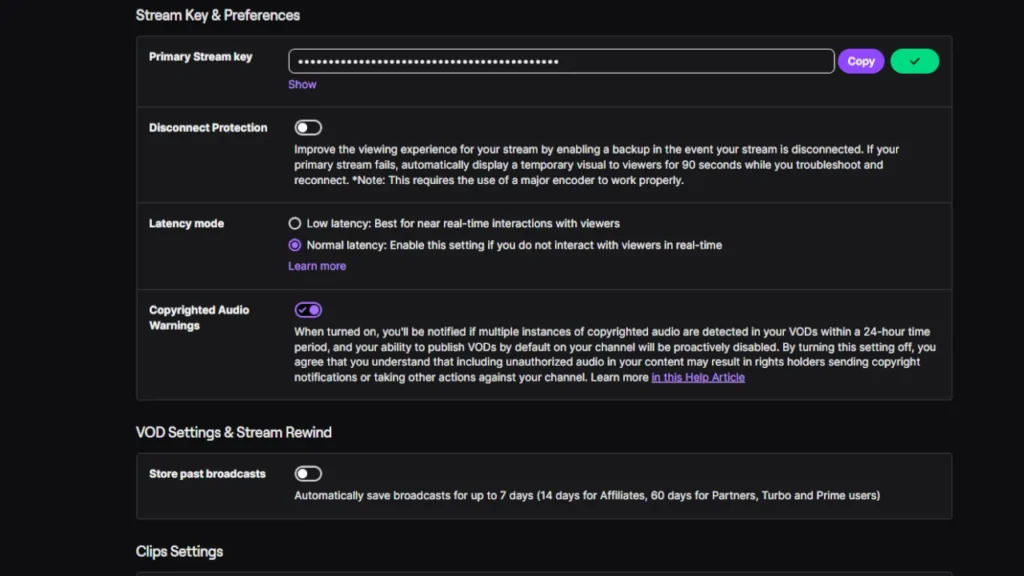
- In the area Primary stream key you can find your Twitch stream key.

Important: Never show your stream key publicly! If someone knows this code, they can go live on your channel without logging in.
How do I use the stream key in OBS or other software?
As soon as you have your stream key, you must enter it in your streaming software.
The best-known tool for this is OBS Studio - but also programs like Streamlabs Desktop, XSplit or Elgato 4K Capture Utility work according to the same principle.
Establish connection in OBS:
- Open OBS Studio.
- Go to File → Settings → Stream.
- Select „Twitch“ for the service.
You now have two options:
Automatic connection
If you connect directly to Twitch, the key is automatically saved in the background. This is safer and more convenient as you don't have to manually enter the code.
Manual connection
If you prefer to connect manually, copy your stream key from the Twitch dashboard and paste it into the „Stream key“ field in the OBS window. Then click on „Apply“ and „OK“.
As soon as you have saved this, OBS is connected - you can go live straight away.
Tip: If you have several Twitch channels (e.g. a main channel and a secondary channel), you can enter the respective stream key separately for each one. This way, you only have to change the profiles in OBS when switching.
How to protect your Twitch stream key from misuse
The stream key is basically your digital house key to Twitch - so treat it just as carefully as your passwords. If someone else knows it, they can go live on your channel - without a password or confirmation. That's why Security extremely important here.
Basic rules for your stream key:
- Never pass it on. Not even to friends or mods. Anyone who knows the key can stream under your name.
- Do not show it in the stream. If you show your dashboard or OBS window in the stream, make sure that the key is hidden.
- Copy it only if necessary. It's best to use the direct Twitch connection (login in OBS), then you never have to see or save it.
- Create a new one if you are unsure. If you suspect that someone knows or has shared your stream key, reset it immediately.

If your Twitch stream key has been compromised
If you suspect that your Twitch stream key hacked or passed on you must act immediately to protect your channel.
Twitch stream key reset - step-by-step guide
To do this, open your Twitch Creator Dashboard and go to the Settings → Stream. There you will find the section „Primary stream key“. Click here on „Reset stream key“, to invalidate your previous key and automatically generate a new one.
In the next step, you should also change your Twitch password and the Two-factor authentication (2FA) activate. You can find this function under Twitch → Security and data protection → Activate two-factor authentication. This ensures that no one can log into your account without authorization - even if someone knows your password.
Finally, we recommend that you refer to log in again on all devices, to end old sessions and save your connection. You can then use your new Twitch Stream Key in OBS, Streamlabs or another streaming software and go live again safely.
Tip: If you stream frequently on different devices, for example on a PC and a laptop, it is worth renewing the stream key regularly - this way you minimize the risk of misuse and stay on the safe side at all times.
Common problems with the Twitch Stream Key
Even experienced streamers sometimes encounter error messages such as:
What to do with „Invalid Stream Key“ on Twitch?
Appears in OBS or Streamlabs the error message „Invalid Stream Key“, is your Twitch Stream Key probably incorrect, outdated or has been reset. Open your Twitch dashboard, copy the current key again and paste it into the software under Settings → Stream on. If the problem persists, reset the stream key on Twitch and check your server settings.
Twitch error “Failed to connect to server” - what to do?
The error message „Failed to connect to server“ means that your streaming software (e.g. OBS or Streamlabs) no stable connection to the Twitch servers can be established. First check whether your internet connection is active. Then open the OBS settings under Stream → Server and select another Twitch server, for example Frankfurt or Amsterdam. If the problem persists, reset your stream key and restart OBS. Also a Firewall / VPN connection may be the cause - deactivate it as a test to rectify the error.
Twitch stream remains black - possible causes
If your Twitch stream breaks off or the image remains black, this is usually not due to the Stream Key, but on your Encoder configuration or Internet connection. Place in OBS sure that you have selected the correct graphics card (GPU) as the encoder and that your Bit rate matches your upload speed (e.g. 6000 kbps for a 10 Mbit upload). Also check that your scene and source are set up correctly and that no window is disabled. If the problem persists, test a lower encoder preset or a reduced resolution (1080p → 720p). This will allow you to stream stably without dropouts or blackscreens.
Twitch Stream Key and Twitch Multi-Streams
Many streamers want to increase their reach and stream on several platforms at the same time. You need special multi-streaming solutions for this.
Each platform has its own stream key, which is linked to a specific channel. So you can not use the same key for multiple platforms.
If you want to stream at the same time, there are two ways:
Via Restream.io or similar services
Platforms like Restream.io, StreamYard or Prism MultiStream make it possible for you, stream simultaneously on multiple platforms - for example on Twitch, YouTube and Kick. Your streaming software sends your signal only once The service then automatically distributes it to all selected target platforms.
The big advantage: You only need a single upload connection, which is particularly practical if your Internet bandwidth is limited.
The disadvantage: Twitch partner and partly also Affiliates are subject to a Exclusivity clause, which may restrict simultaneous streaming on other platforms. Therefore, check your Twitch contract terms in advance to avoid violating any guidelines.
About OBS Custom RTMP connections
Alternatively, you can also use OBS Studio (or Streamlabs Desktop) own RTMP server manually. This means that for each platform - for example Twitch, YouTube or Kick - an individual connection including your own Stream Key create.
This method gives you full control over your streams, as you can specify exactly which servers your signal is sent to. However, it also has a decisive disadvantage:
You need one for each platform Separate upload bandwidth. So if you are sending to three platforms at the same time, your Internet line has to manage the data stream for all three at the same time.
Recommendation: This variant is particularly suitable for advanced streamers with a stable connection and high upload speed (at least 20 Mbit/s). If you want maximum quality and flexibility Custom RTMP the technically cleanest solution.
Change or generate a new Twitch stream key - here's how
There are situations where it makes sense to use your Twitch stream key to change - For example, if you suspect that someone has had access to it, you can use your Set up new streaming software or simply a Technical problem you want to fix. In such cases, you can edit your key directly in the Twitch dashboard Reset or regenerate.
Step-by-step instructions:
- Open your Twitch Creator Dashboard.
- Go to the area Settings → Stream.
- Scroll to the section „Primary stream key“.
- Click there on „Reset stream key“.
Twitch then creates automatically generates a new stream key - the old one becomes invalid immediately. This ensures that no one can stream on your channel with the old key.
After resetting, you must enter the new code in your Streaming software (e.g. OBS, Streamlabs or Elgato) enter. If you are using the automatic Twitch connection, all you need to do is log in once - OBS will then automatically apply the new key.
Tip for advanced streamers: If you work with multiple devices (e.g. gaming PC or IRL backpack), you can create additional stream keys in the Twitch dashboard - each device gets its own key.
Stream key in the Twitch mobile app
Many people think that you also need the stream key in the mobile app - but that's not true. If you use it directly via the Twitch app on your smartphone, the connection is established automatically.
So you need the key only, if you use an external app or software (e.g. Prism Live Studio, Larix Broadcaster or StreamElements Mobile).
Conclusion - Your stream key is the heart of your Twitch stream
The Twitch stream key is small but crucial. It connects you to the platform, allows you to broadcast your stream - and is also a security risk if you are not careful with it.
Always remember that:
- Treat it like your password.
- If possible, use the automatic Twitch connection in your streaming software.
- Reset it if you have the slightest doubt.
With this knowledge, you are perfectly prepared to launch your stream securely, stably and professionally.
If you manage your stream key securely, nothing stands in the way of your first successful livestream
Read more:
Do you want to make your stream not only secure, but also professional? Then take a look at our guides and gear recommendations
- 🎥 How to get more Viewers on Twitch: 10 Tips for Streamers - learn how to accelerate your growth.
- 💰 How to earn money on Twitch: The guide for 2025 - explains all monetization strategies.
- 🎤 The best streaming microphones - find the perfect microphone for your stream.
- 🖱️ The best streaming mice - Here you can see which mice professionals really use.
FAQ
→ No, OBS saves it automatically or connects directly via your Twitch login.
→ Only if you suspect misuse or if you change devices/software.
→ You can generate a new stream key in the Twitch dashboard at any time. The old one automatically becomes invalid - your channel remains secure.